How to Remove Page 5 and 10 from PDF Offline (No Cloud Uploads)
Published on: June 5, 2026 | Category: Data Security
We’ve all been there: you have a finalized business proposal, a research paper, or a slideshow presentation, but some pages are redundant. Perhaps page 5 contains outdated financial tables, and page 10 has a placeholder draft watermark. You need to delete those exact pages and keep the rest intact.
The catch? Most online PDF editors force you to upload your confidential files to their external servers. If you are handling sensitive company records, client invoices, or legal contracts, cloud uploading is a massive security risk.
In this tutorial, we will show you how to **remove specific pages from PDF** files completely offline with PDF Agile.
To work offline securely, PDF Agile is the ultimate local solution. Your file is loaded on your computer's RAM, and pages are removed locally without uploading a single byte to the web.
Once PDF Agile is installed on your PC, you can disconnect your internet entirely, and the tool will still work perfectly.
Step-by-Step Instructions:
- Download and open PDF Agile on your computer.
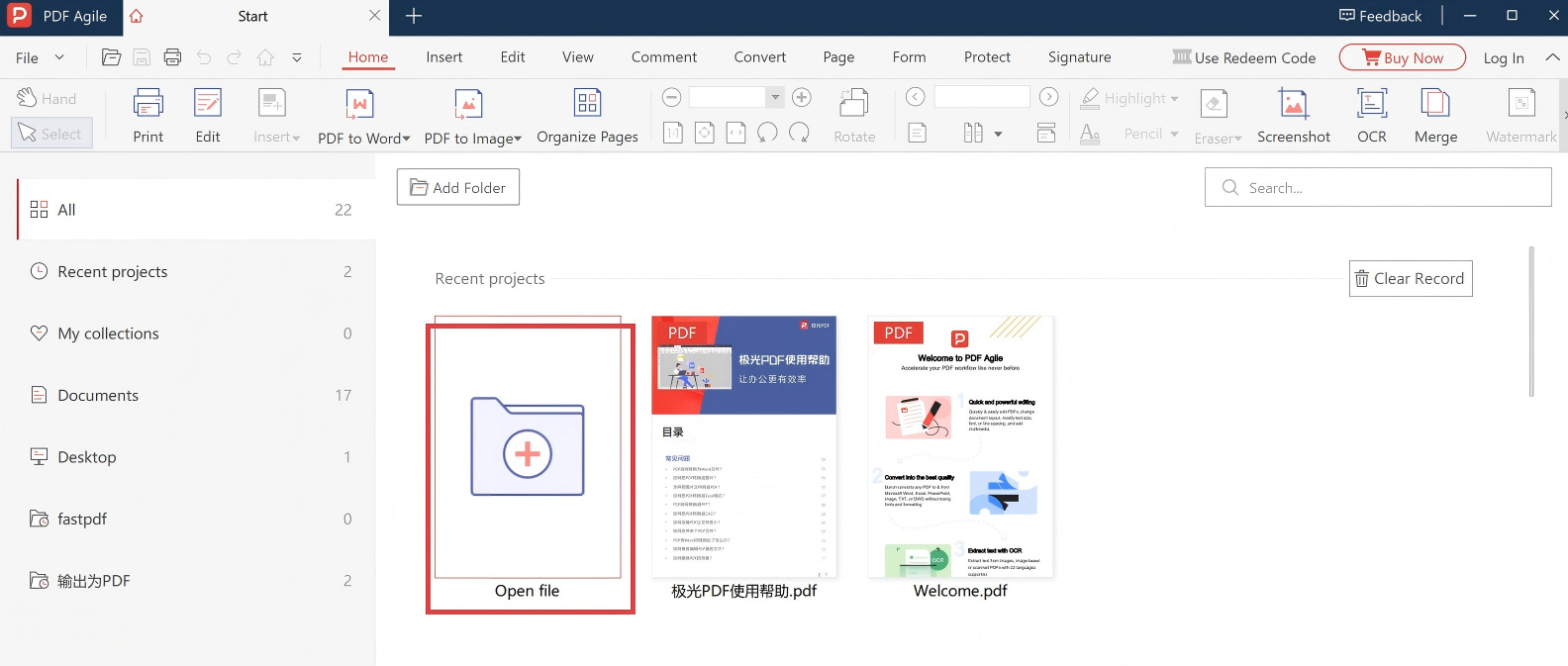
- Click on "Open File" and select your target PDF document.
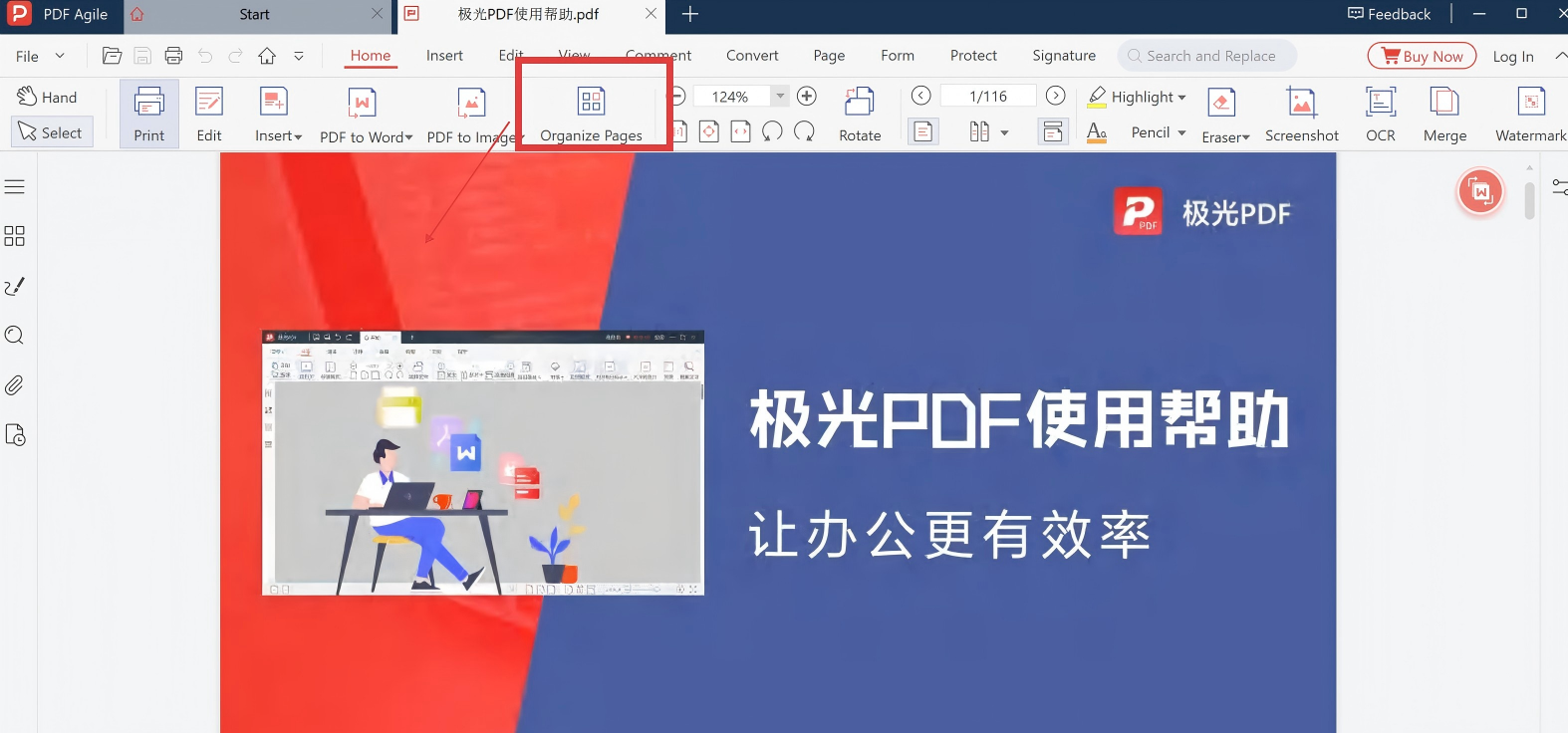
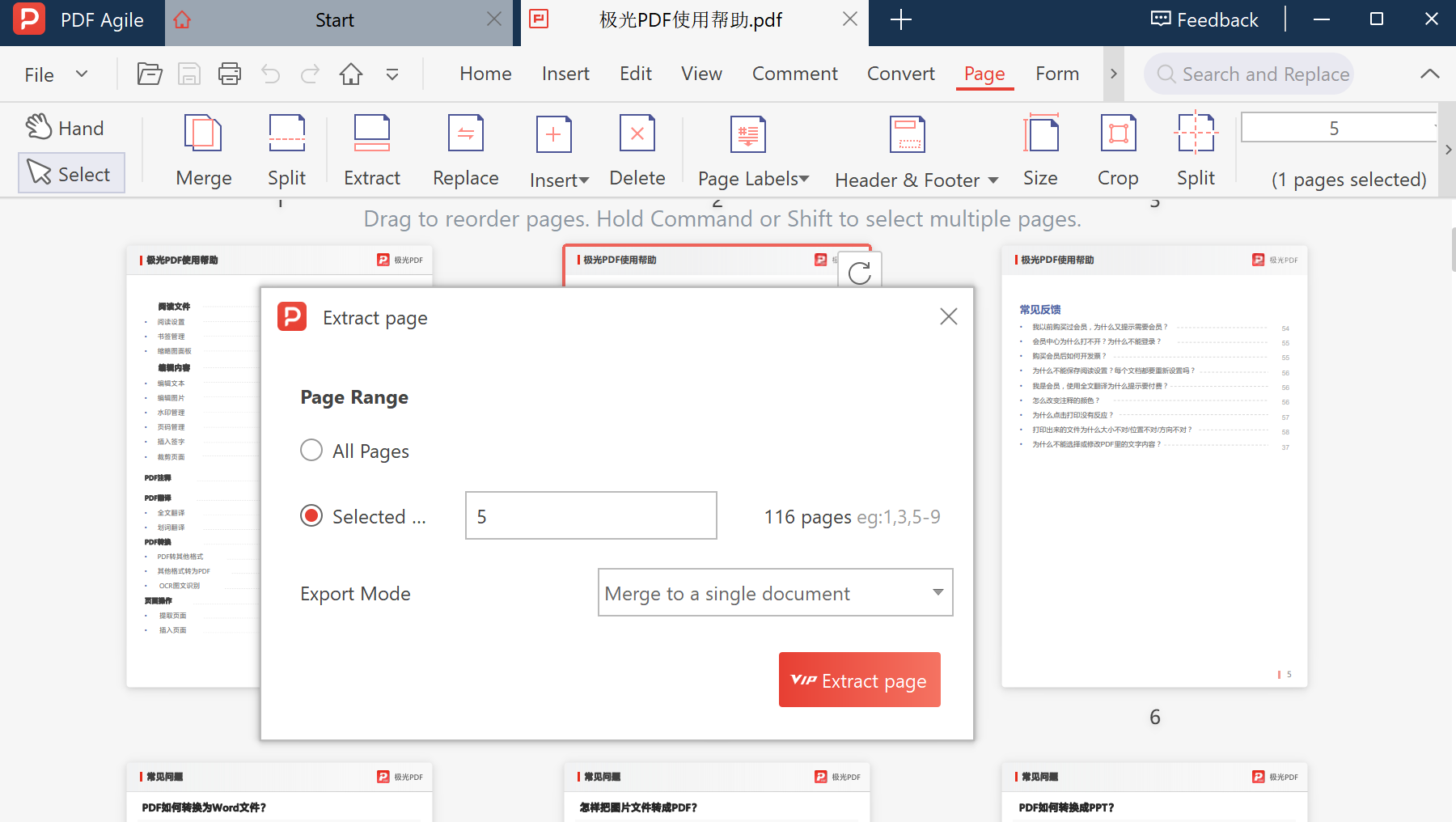
- Go to the Page tab in the top ribbon menu.
- Click on the page thumbnail of Page 5, then click Delete Pages (or press the delete key) to remove specific pages from the PDF.
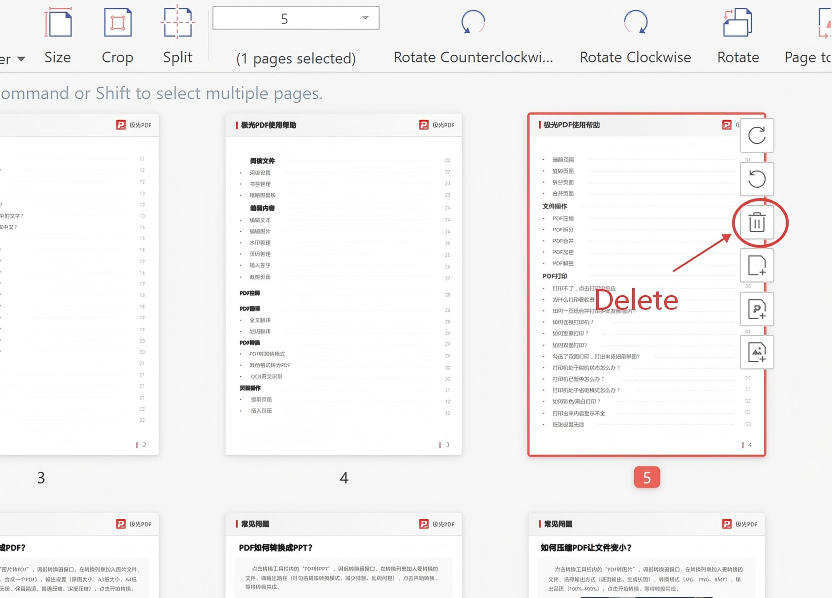
- Repeat the process for Page 10.
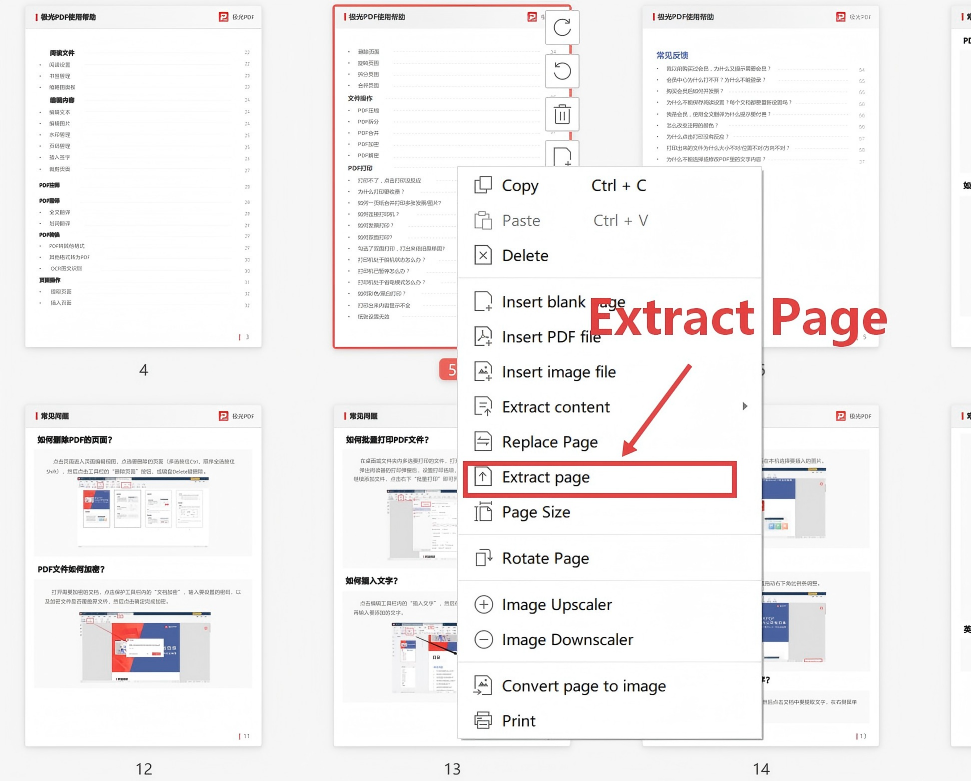
- (Optional) If you want to keep page 5 as a standalone record before deleting it, simply click Extract Pages to save one page of PDF as a new file.
- Click the Save button in the top left corner to save your changes locally.
The tool compiles a fresh PDF file excluding pages 5 and 10 in milliseconds. Because the computing was done inside your local PC, your confidential document never traveled across the internet.