How to Separate Scanned PDF Documents Without Printing
Published on: June 5, 2026 | Category: Office Productivity
In many modern offices, scanning multi-page documents often results in one single giant combined PDF file rather than tidy, separate files. Manually separating them by printing and rescanning wastes time, paper, and degrades document quality.
With PDF Agile, you can split these scanned records cleanly and 100% locally. No upload is required, protecting corporate compliance and patient or client data privacy.
Step-by-Step Instructions:
- Download and open PDF Agile on your Windows PC.
- Import your scanned PDF document.
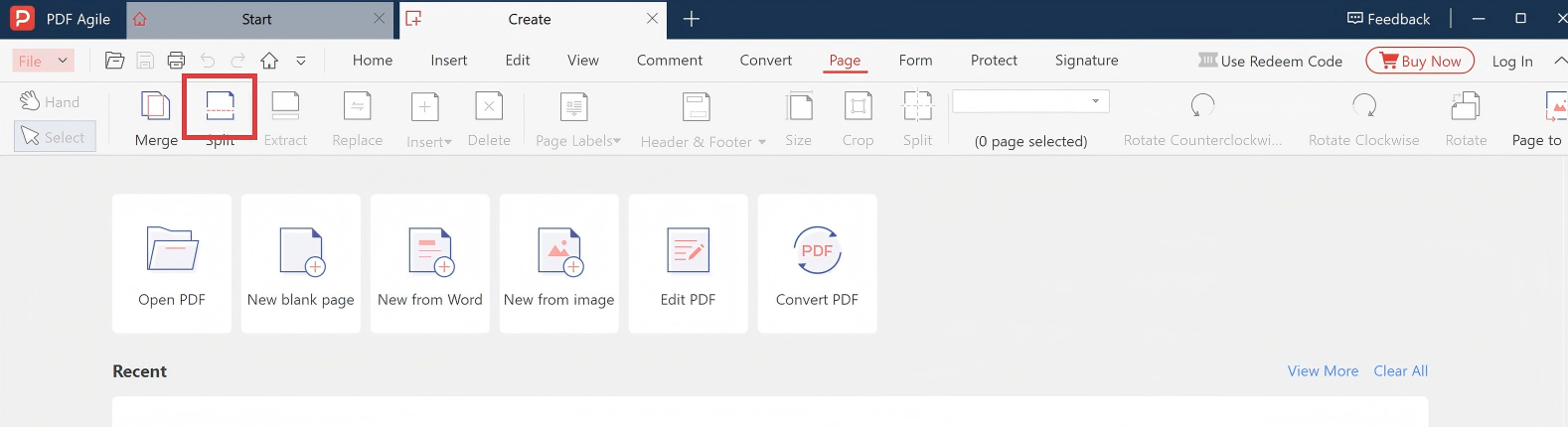
- Go to the Page tab and select Split PDF or Page Organizer.
- Specify your splitting criteria: enter exact page ranges (e.g.
1-3, 4-7, 8-10) or choose "split by every X pages".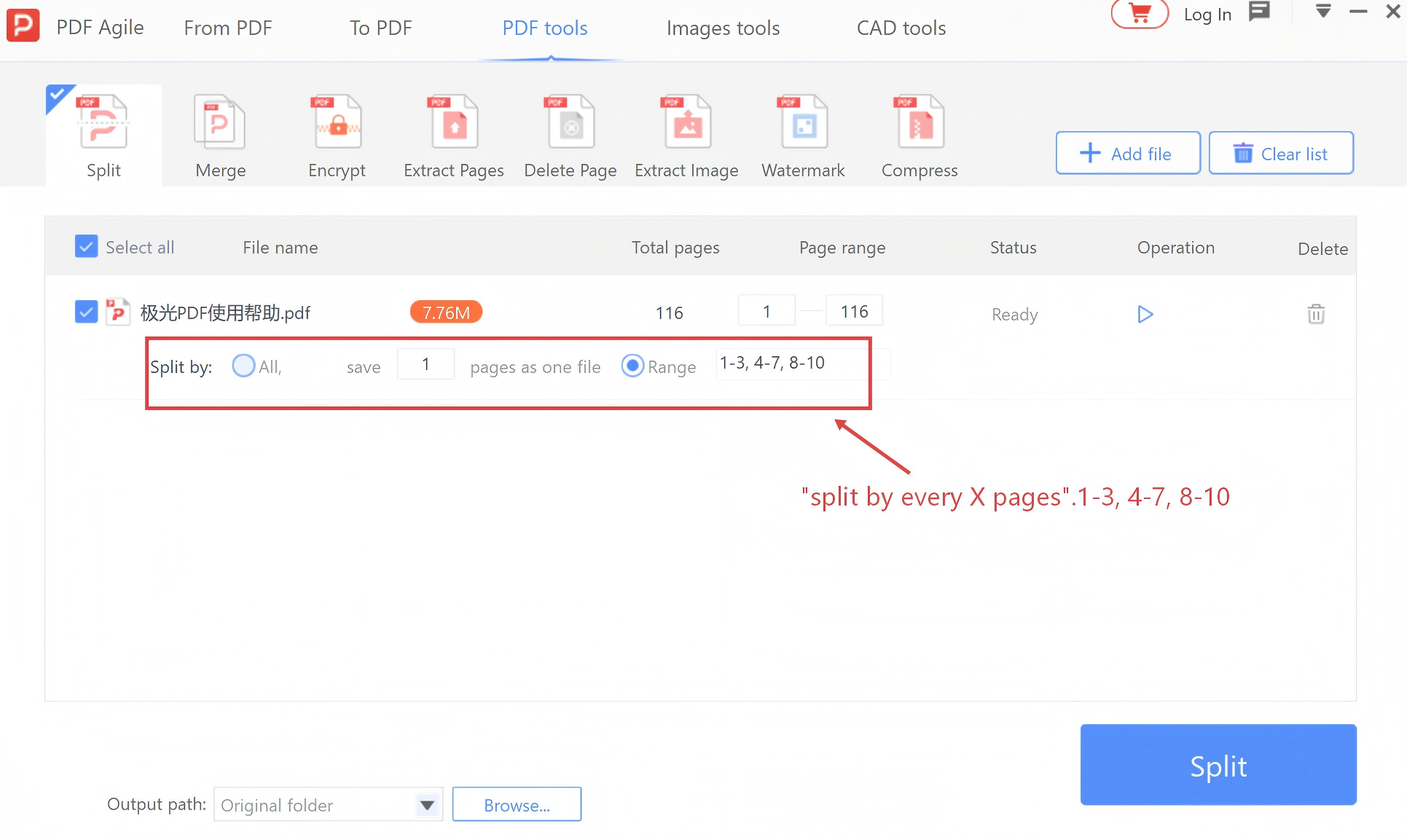
- Choose your target folder and click Apply.
Your multi-page scans are split instantly into separate files, with layout resolution and font outlines 100% preserved.