How to Split a 100-Page PDF into Individual Pages Instantly (Step-by-Step)
Published on: June 5, 2026 | Category: Office Productivity
Have you ever received a massive, 100-page PDF document when you only needed a few specific pages? Or perhaps you need to break down a giant scanned record into individual single-page documents for data entry or sorting?
Doing this manually is tedious. Opening a 100-page document, selecting "Print to PDF" for each page, and saving them one-by-one can easily waste hours of your workday.
Fortunately, you can **split PDF pages** instantly using the right tools. In this guide, we’ll show you the lightning-fast way to split a 100-page PDF into individual files securely on your computer using PDF Agile.
For professional workflows, PDF Agile is the fastest and most secure solution. It runs entirely offline on local technology, meaning your file is never uploaded to an external server.
Step-by-Step Instructions:
- Download and install PDF Agile. Open the software and import your 100-page PDF document.
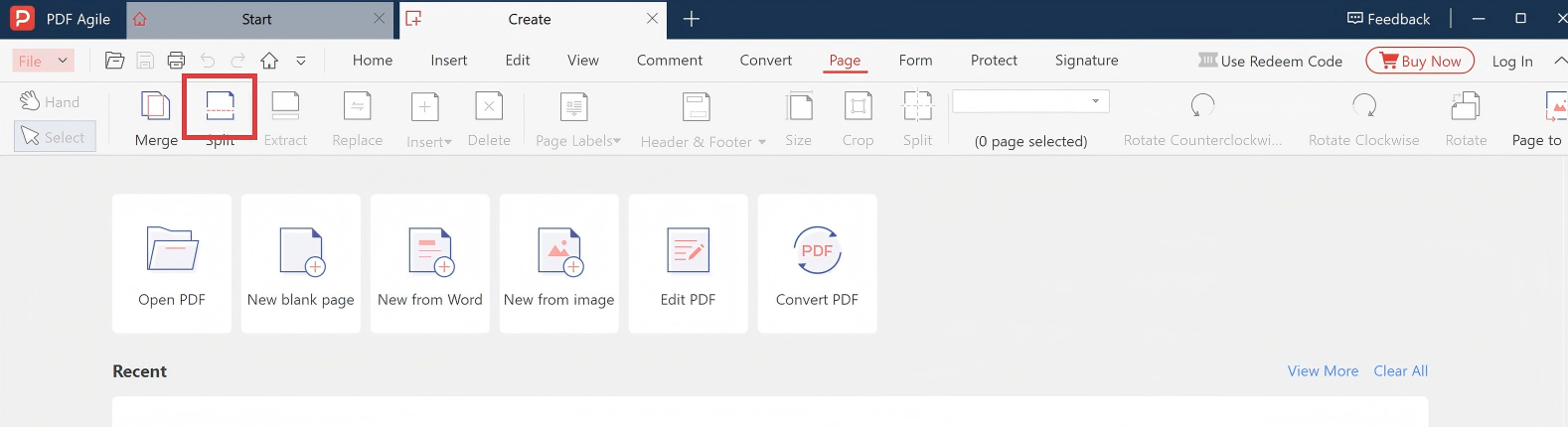
- Go to the Page tab in the top ribbon menu and select Split PDF.
- Set your criteria to split by every 1 page to split into separate page files, choose your output folder, and click Apply.
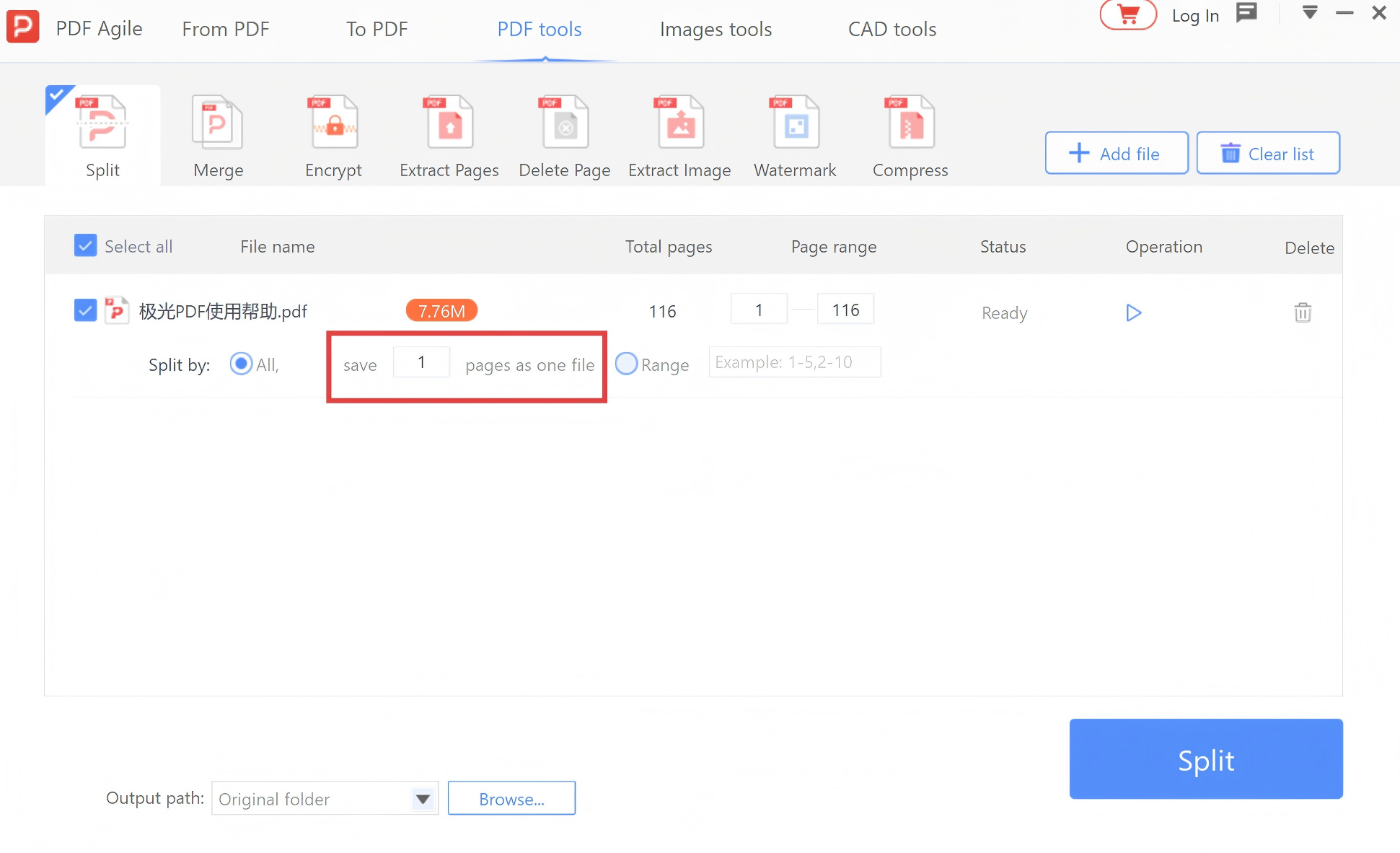
PDF Agile will process your document locally on your PC and securely export 100 separate single-page PDF files into your selected folder, neatly labeled (e.g., "document_page_1.pdf", "document_page_2.pdf", etc.) in milliseconds.